


If you have used the SPD Flash Tool and encountered an error while flashing or installing firmware on Spreadtrum/Unisoc-powered devices, this guide provides tested, practical solutions to the most common issues.
Whether you’re unbricking a dead phone, bypassing FRP locks, or performing a manual firmware upgrade, you’ll find clear fixes for the frequent error codes below.
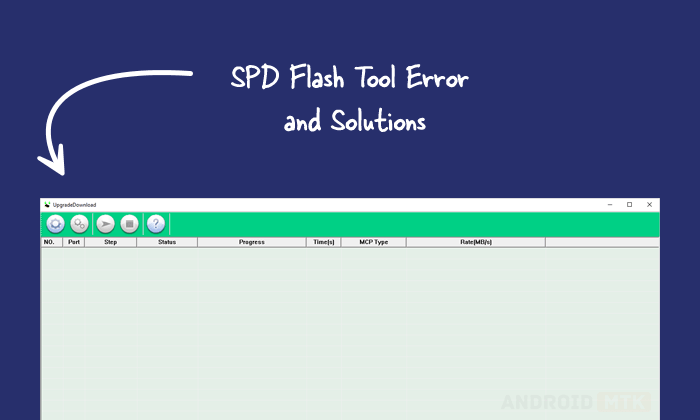
Common Errors and Solutions
Below is a comprehensive list of the most frequently encountered errors in the SPD Flash Tool, along with reliable fixes.
Phone is Totally Dead
The device does not respond to the power button or only vibrates briefly without turning on.
Solution
Fully charge the battery first. If possible, remove and re-insert the battery.
Load the correct .pac firmware file and try flashing again.
Steps: Use the Research Tool, hold the Volume Down key (or the required key combination for your model), and connect the phone to the PC immediately after clicking Start.
CDLFW Driver Startup Fail
SPD Flash Tool failed to create empty document.
Solution
Install the Microsoft Visual C++ 2010 or above.
Tool Does Not Show “Waiting…”
After clicking Start and connecting the phone, the SPD Flash Tool fails to detect the device in download mode.
Solution
Reinstall the latest Spreadtrum/Unisoc USB drivers.
Ensure the phone is completely powered off.
Try a different USB cable, a USB 2.0 port, or another computer.
Run the tool as Administrator.
Progress Stuck at “Waiting…” or “Checking Baudrate”
SPD Flash Tool hangs during the connection process.
Solution
Make sure the phone is fully powered off and the battery is charged.
Reinstall the USB drivers, then try a different USB cable and port.
Hold Volume Down (or Volume Up + Down) while connecting the device.
Use the latest version of the Research Download Tool and experiment with different baud rate settings if available.
Failed: User Cancel
Interruption in communication between the phone and the PC.
Solution
Restart the SPD Flash Tool, reload the .pac file, and start the process again. Ensure the phone stays connected and do not disconnect or press any key until the flash completes.
Failed: [PS2264] Open port failed
SPD Flash Tool cannot open the COM port to communicate with the device, usually due to driver issues, USB problems, or the phone not entering download mode properly.
Solution
Reinstall the latest Spreadtrum/Unisoc USB drivers.
Power off the phone completely, remove and re-insert the battery (if removable), and hold Volume Down while connecting the USB cable.
Try a different USB cable, USB 2.0 port, or PC. Run the tool as Administrator.
Failed: NV Data in device is crashed
Non-volatile (NV) data or calibration data is corrupted or mismatched.
Solution
In the tool settings, go to the Calibration section and uncheck all NV/Calibration options (or skip the NV partitions entirely).
The Research Download Tool offers more flexibility for this.
After a successful flash, recalibrate the device using the appropriate tools if needed.
Failed: GSM Cali in phone is not calibrated
SPD Flash Tool cannot read or verify the GSM calibration data (NV items) from the phone.
Solution
Switch to the Research Download Tool.
Go to Settings → Calibration and uncheck all NV/Calibration items.
Reload the .pac file and flash again.
NV_WLTE Failed or _BKF_NV_ Write Failed
Specific NV partitions (related to LTE or WCN) fail to write.
Solution
Switch to the Research Download Tool.
In the settings, uncheck or skip the problematic NV partition.
Use the latest tool version and avoid flashing NV items unless necessary.
Failed: UART Send Error
Communication failure during the initial handshake or data transfer.
Solution
Reinstall the USB drivers, try a different USB cable and port, and remove/re-insert the battery if possible.
Close and reopen the tool.
Use the latest version of the Research or Upgrade Tool.
Failed: Incompatible Partition
The firmware partition layout does not match the target device.
Solution
Use the latest Research Download Tool.
Flash FDL1 and FDL2 first, then flash the remaining partitions individually.
Try the repartition option if available (use with caution).
Always use a .pac firmware file that exactly matches your device model and hardware variant.
Downloading Failed: Wait Input Time Out
A timeout occurs during data transfer, especially with large firmware files.
Solution
Update to the latest version of SPD Flash Tool (recommended: r2.9.9008 or higher).
Ensure a stable USB connection.
Flash fewer partitions at a time.
Try a different PC or USB 2.0 port.
Failed: Decode or Verify Received Buffer Error
Data corruption occurred during transfer, or the firmware is mismatched.
Solution
Re-download the .pac file from a trusted source.
Update the SPD Flash Tool to the latest version.
Check USB stability and try a different cable or port.
Load Bin Packet Failed (or “Bin packet’s size is too small” / “Bin packet version is not supported”)
The binary packet in the PAC file is corrupted or incompatible.
Solution
Re-download or re-extract the firmware package.
Use the latest version of SPD Flash Tool.
Make sure the PAC file has not been damaged or incorrectly renamed.
Failed: The Data Packet with Type(0x96) Returned Was Misformatted
Packet formatting or communication error.
Solution
Update to the latest version of the SPD Flash Tool.
Verify the integrity of the firmware file.
Use a stable USB connection, then restart both your PC and the SPD Flash Tool before retrying.
USB Device Not Recognized or “Your Driver Version is Too Low”
Driver-related detection failure.
Solution
Reinstall the latest SPD/Spreadtrum USB drivers.
Try different USB ports and cables.
Restart your computer after installing the drivers.
Please install the download driver first!!!
This error persists even after installing the latest or correct SPD/Unisoc drivers, especially with older tool versions such as R19.18.0601.
Solution
Switch to a different version of the SPD Flash Tool (preferably the latest Research Download Tool).
Notes
- Warning: Flashing custom or incorrect firmware can permanently brick your device. Proceed at your own risk. Always back up important data before starting.
- Drivers: Always install the latest official Spreadtrum/Unisoc USB drivers before using the tool.
- Correct Firmware: Use only the .pac file that precisely matches your device model, hardware version, and build number to minimize errors.
- Credits: The SPD Flash Tool (Research Download / Upgrade Download Tool) is developed and distributed by Spreadtrum/Unisoc. Full credit goes to the original developers.

