


In this article, we will guide you through installing stock firmware (.cpb) on MediaTek, Spreadtrum (UniSoc), and Qualcomm chipset-powered devices using the 360OS MDT ASE Tool.
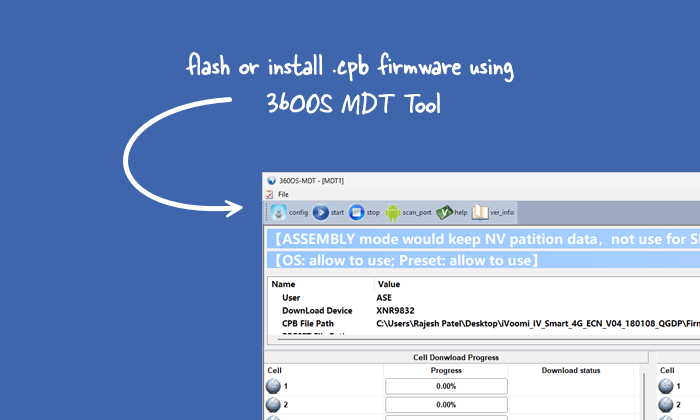
What is the 360OS MDT ASE Tool?
The 360OS MDT ASE Tool is an official flashing utility from Qiku Internet Network Scientific Co., Ltd. that helps users flash or install stock firmware (.cpb) on MediaTek, Spreadtrum (UniSoc), and Qualcomm chipset-powered devices.
What is Stock Firmware?
Stock firmware refers to the original operating system (OS) pre-installed on a mobile device when it leaves the factory. It’s a tailored version of the OS, customised by the manufacturer to incorporate its unique user interface (UI), proprietary features, and pre-installed applications.
How to Install Stock Firmware Using 360OS MDT ASE Tool
Before you begin, ensure you have installed the necessary drivers and tools.
Prerequisites
- Charge your device to at least 40-50%.
- You will need a working Windows PC/Laptop and a USB cable.
- Take a complete backup of your device.
- Download and install Qualcomm, MediaTek, and Spreadtrum Driver.
- Download and extract the MDT ASE Tool.
- Stock firmware for the device.
Disclaimer: androidmtk.com shall not be held liable for any damage incurred to your device during or after following this guide. Proceed with caution and at your own risk.
Steps to Install Stock Firmware (.cpb) Using the 360OS MDT ASE Tool
- Launch the 360OS MDT ASE Tool.
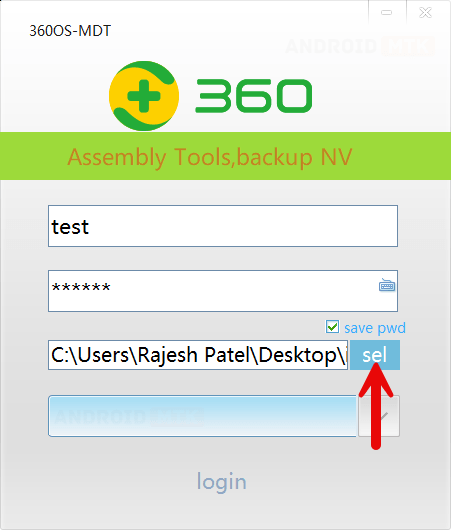
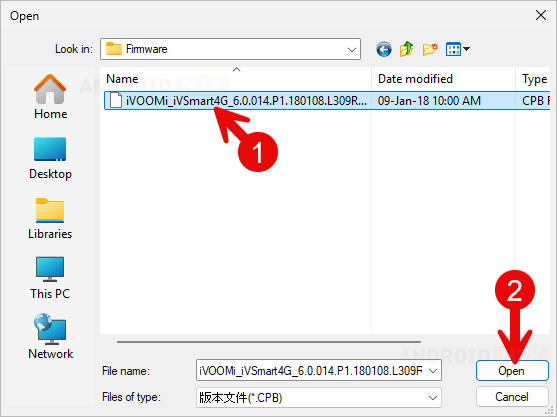
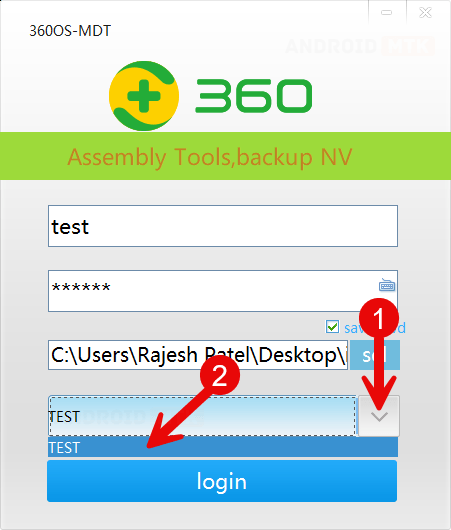
- Once the MDT ASE Tool is launched, click the Select button.
- Locate the firmware (.cpb) you want to install.
- Click on the Drop-Down button and Choose Test option.
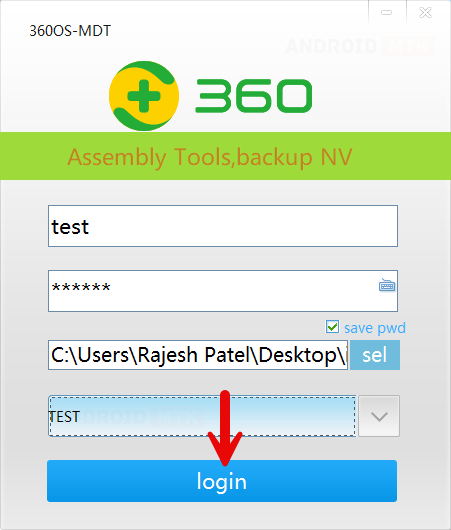
- Click the Login button.
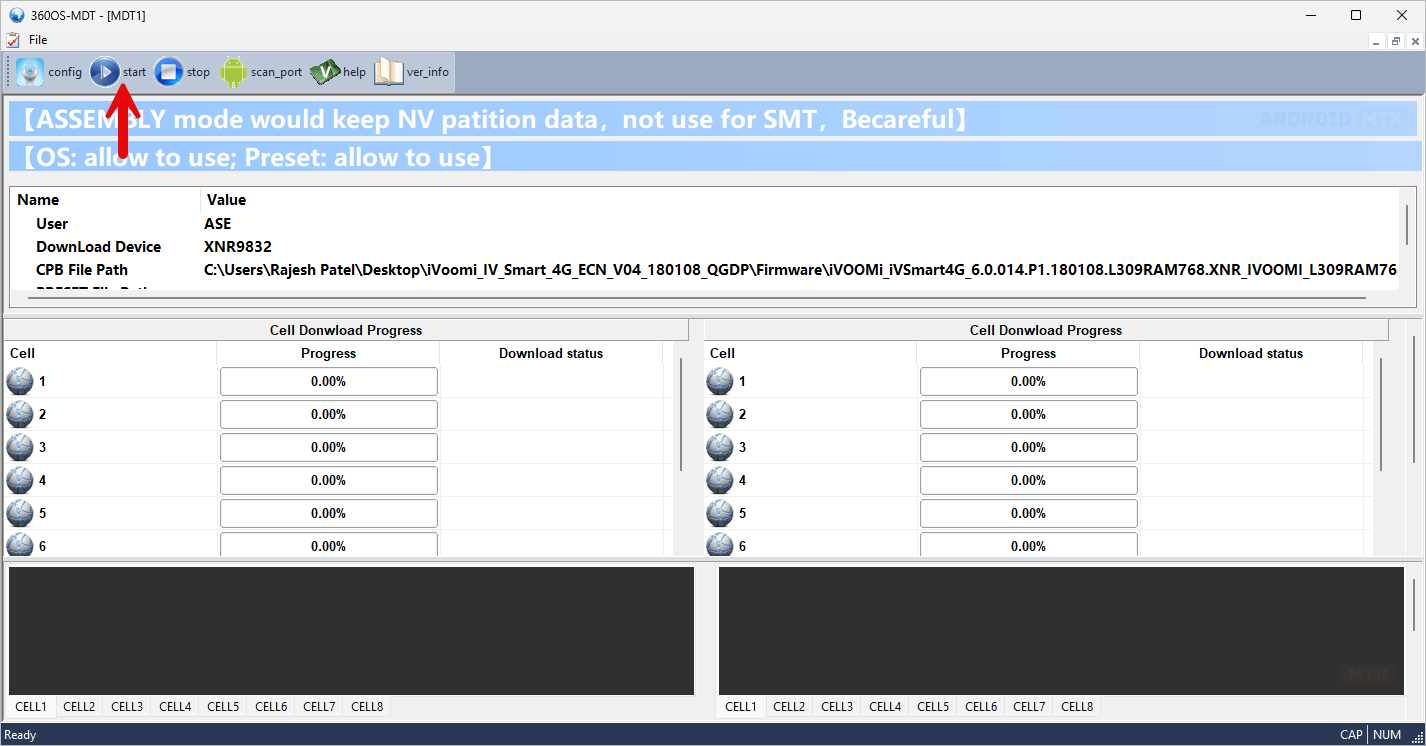
- Power off your device and connect it to your computer using the USB cable.
- Click the Start button to begin the flashing.
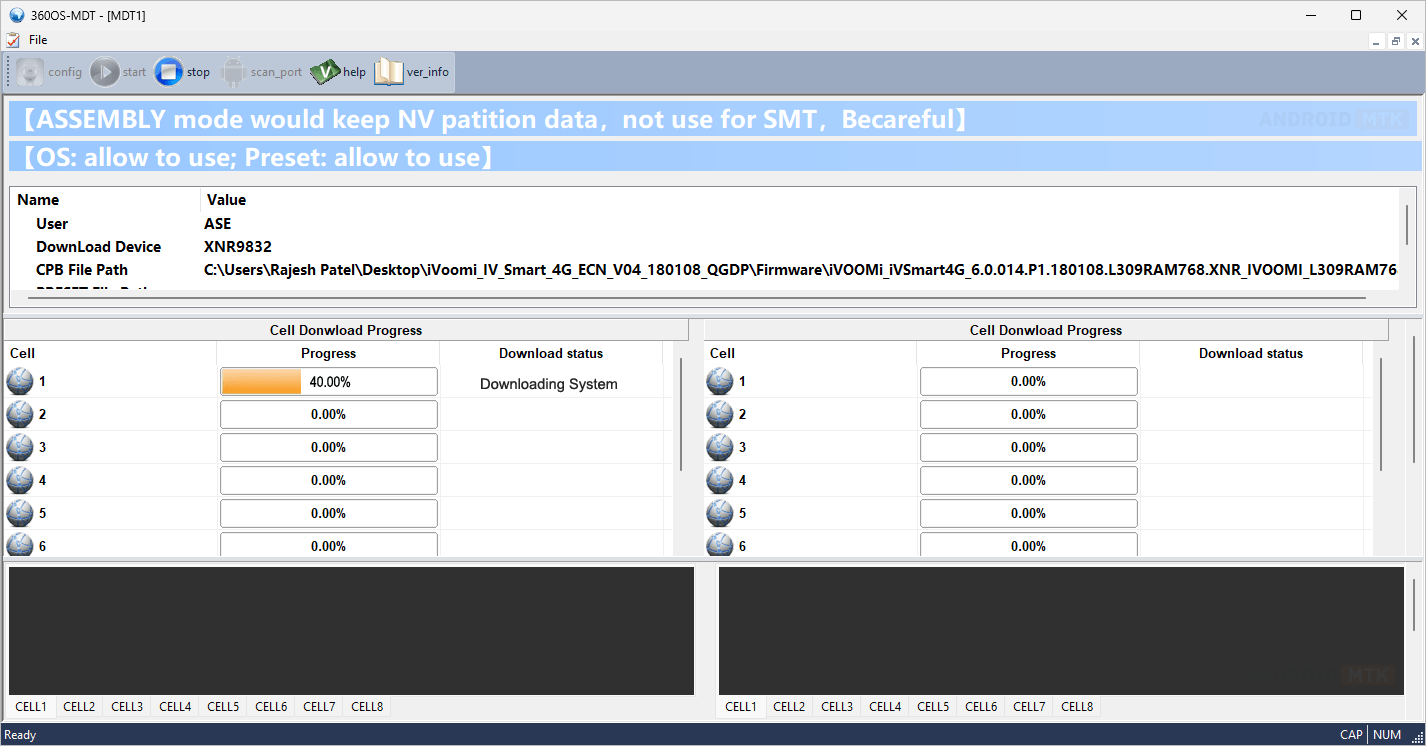
- The flashing process will take a few minutes to complete.
- Once the flashing process is complete, you will receive a successful message.
- Click the Stop button to Stop the flashing.

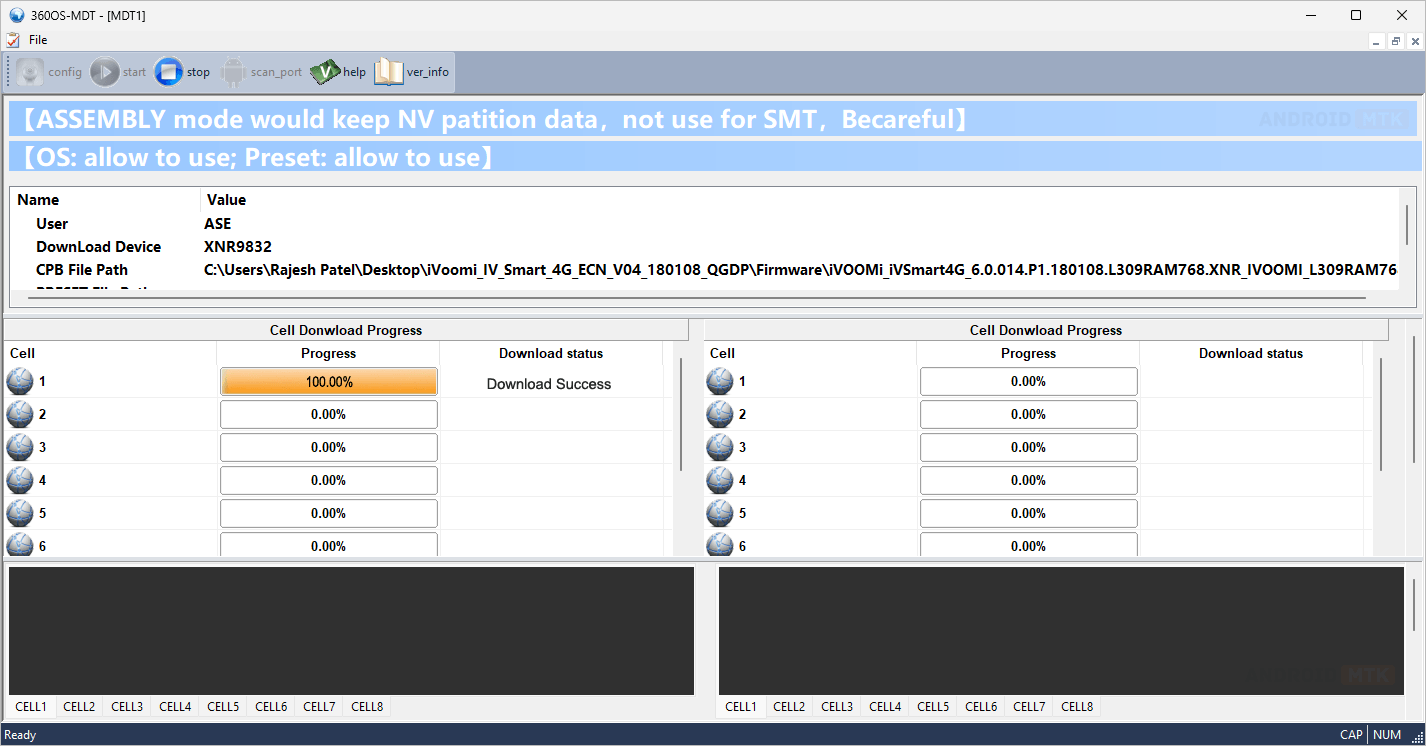
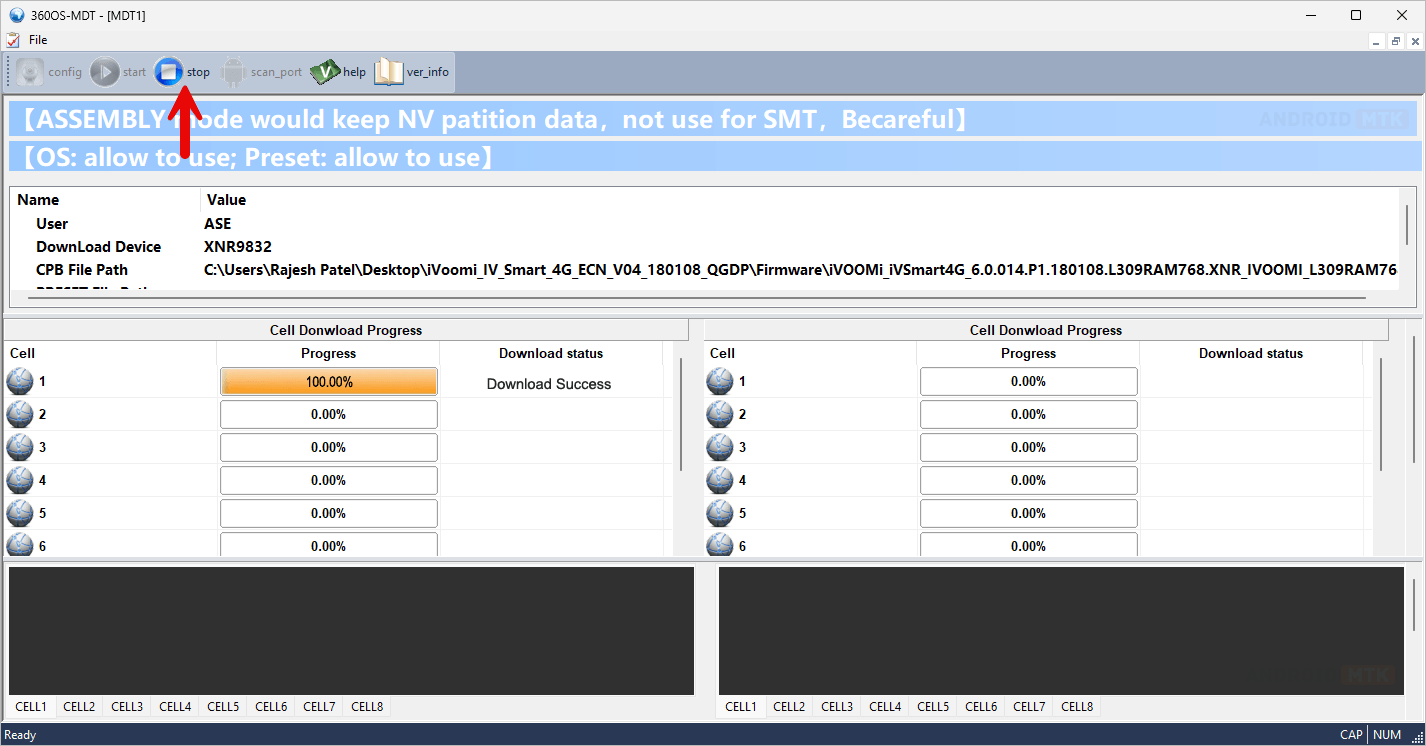
Congratulations! You have successfully flashed the stock firmware. Close the MDT ASE Tool, disconnect your device from the computer, and restart it.
Notes
- Initial Boot Process: Following the flashing procedure, your device will undergo an initial boot process, which may take anywhere from 1 to 10 minutes. Once complete, you will be prompted to choose the device language and other details, similar to setting up a new device.
- Caution: Back up your data before using the 360OS MDT ASE Tool. Your data will be permanently removed during the flashing or installation process.
- Credits: MDT Tool is developed and maintained by the MDT Team at Qiku Internet Network Scientific (Shenzhen) Co., Ltd for 360OS production use.

