


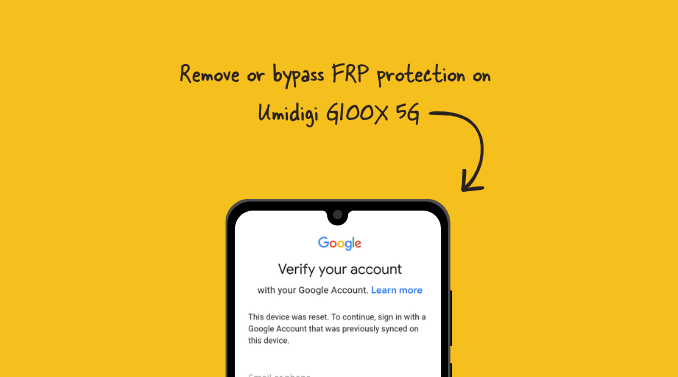
In this article, we will guide you through removing or bypassing Factory Reset Protection (FRP) on the Umidigi G100X 5G smartphone running Android 15.
What is FRP Protection?
Factory Reset Protection (FRP) is a built-in security feature introduced with Android 5.1. Its primary purpose is to safeguard your device if it is reset to factory settings without your authorisation. Essentially, FRP prevents unauthorised users from accessing your phone if it is lost or stolen. While this protects your personal information and makes stolen devices less appealing to thieves, it can be a hurdle if you forget your own Google account credentials.
How to Remove FRP Protection?
To remove FRP on your Umidigi G100X 5G, you will need the specific FRP reset file and the SPD Research Tool. Before proceeding, ensure your device meets the following requirements.
Prerequisites
- Charge your device to at least 40-50%.
- A working Windows PC and a high-quality USB cable.
- Download and install the SPD USB Driver.
- Download the SPD Research Tool.
- Download the Umidigi G100X 5G FRP Reset File.
Disclaimer: androidmtk.com is not responsible for any hardware or software damage that may occur during this process. Proceed at your own risk.
Steps to Remove FRP on Umidigi G100X 5G
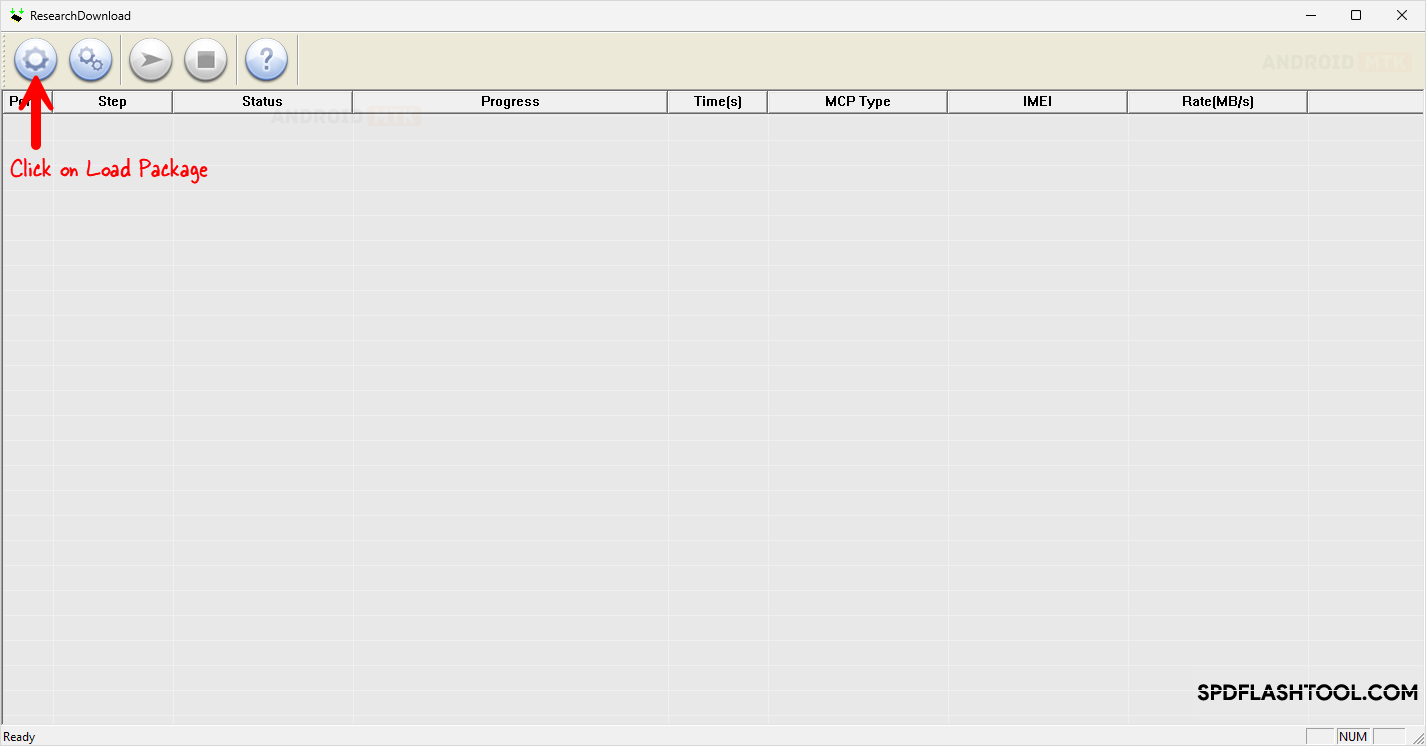
- Open the SPD Research Tool on your PC.
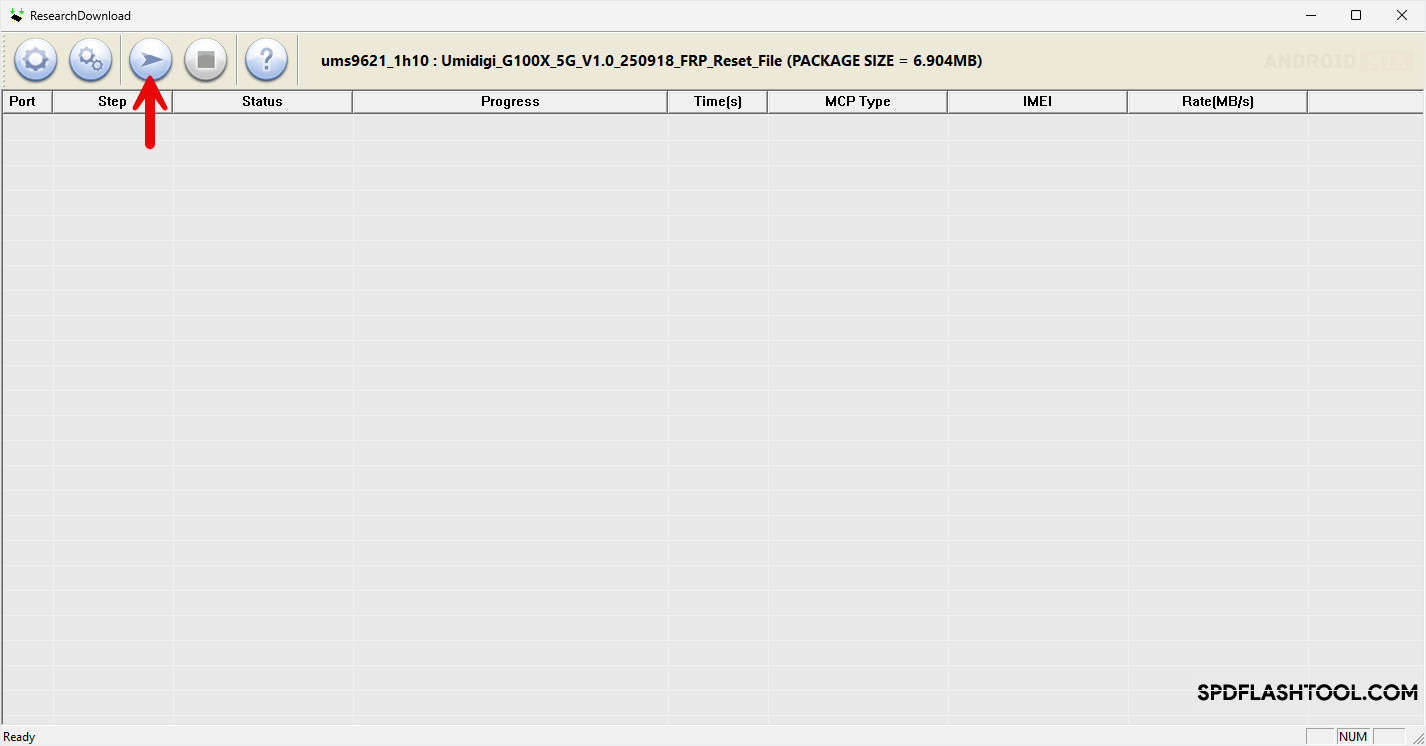
- Click the Load Package button.
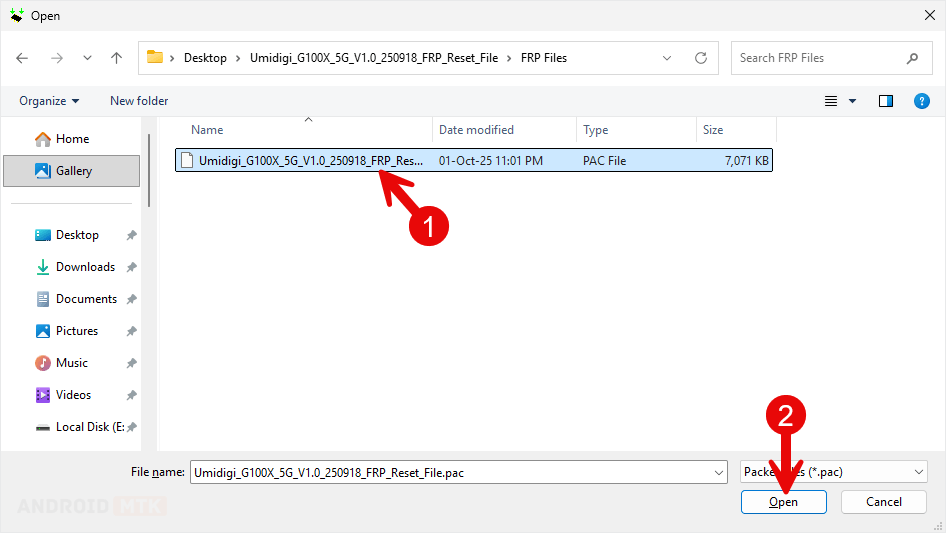
- Locate and select the Umidigi G100X 5G FRP file you downloaded earlier.
- Power off your Umidigi G100X 5G completely.
- Connect your device to PC. Make sure its in Download Mode.
- Once the device is detected (in deviceManager), click the Start Downloading button.
- The flashing process usually takes a few minutes. Once finished, a green Passed message will appear in the tool.

💡How to Enter Download Mode:
1. Power off the device.
2. Press and hold the Volume Up and Volume Down buttons simultaneously.
3. While holding the buttons, connect the phone to your computer via USB.
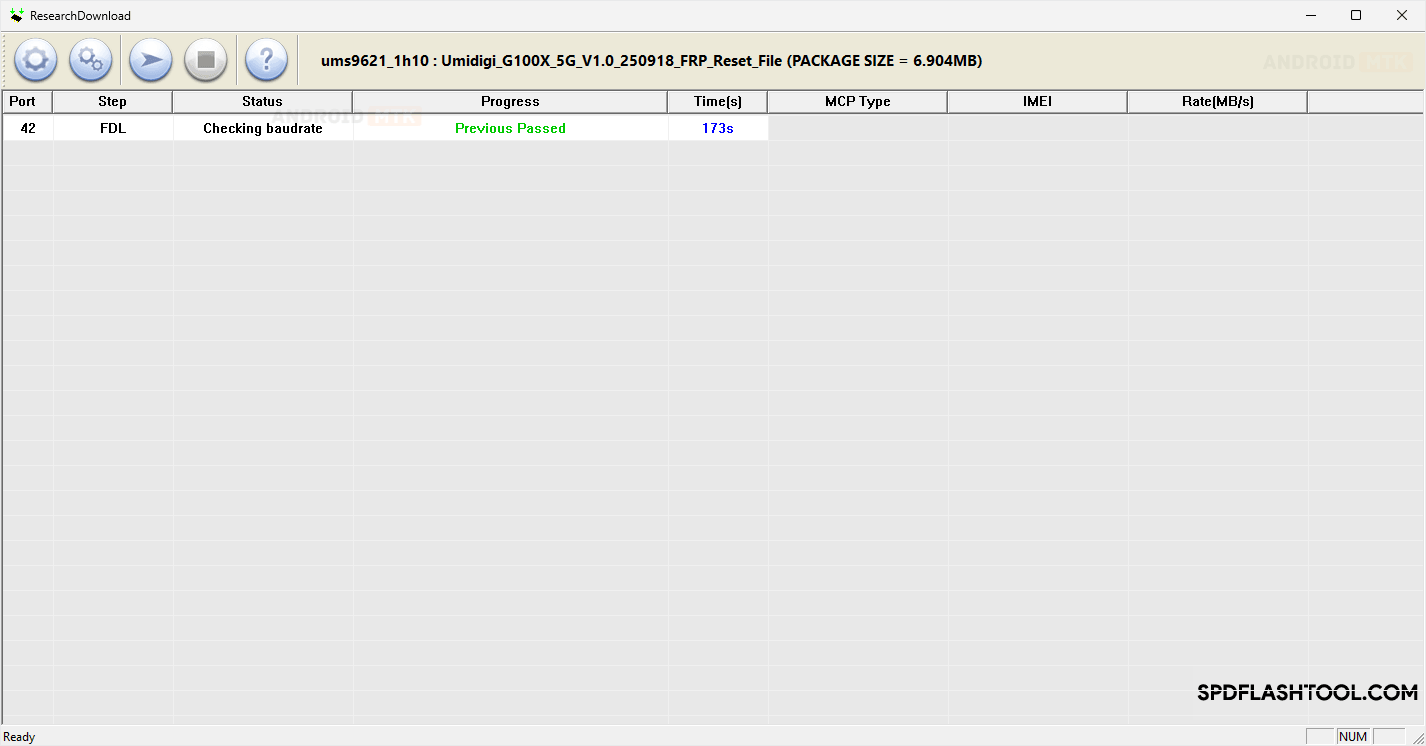
Congratulations! You have successfully removed the FRP protection. You can now disconnect your phone and restart it.
Notes
- Initial Boot Process: The first boot after an FRP reset may take 1 to 5 minutes. Do not interrupt this process. You will then be prompted to complete the initial setup (language, Wi-Fi, etc.).
- Important: Be aware that removing FRP via this method will erase all user data on the device.
- Credits: We acknowledge Unisoc Communications Inc. for developing and providing the SPD Research Tool.

