


In this article, we will guide you through fixing the NV-W (NV Write) error that appears during flashing on Spreadtrum (UniSoc) chipset-powered devices using the SPD Research Tool.
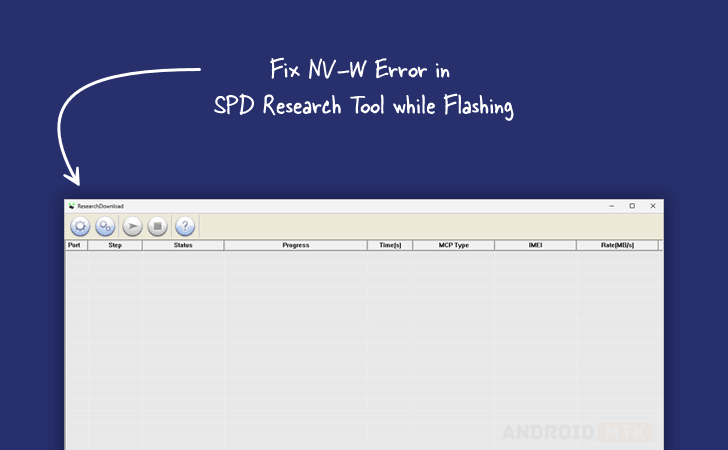
What is NV-W Error in SPD Research Tool?
The NV-W Error (NV Write Error) is a common flashing error in the SPD Research Tool. It usually occurs when the tool fails to write NV (Non-Volatile) data or when there is a mismatch in partitions, wrong firmware, or improper settings during the flashing process.
Why Does NV-W Error Occur?
This error mainly appears due to corrupted firmware, incorrect .pac file, outdated SPD tool version, missing or wrong drivers, or when certain partitions like NV or ProdNV are locked or not properly handled during flashing.
How to Fix NV-W Error in SPD Research Tool
Before you begin, ensure you have installed the necessary drivers and tools.
Prerequisites
- Charge your device to at least 40-50%.
- You will need a working Windows PC/Laptop and a USB cable.
- Download and install the latest Spreadtrum USB Drivers.
- Download and extract the latest SPD Research Tool.
- Stock firmware (.pac file) for your device.
Disclaimer: androidmtk.com shall not be held liable for any damage incurred to your device during or after following this guide. Proceed with caution and at your own risk.
Steps to Fix NV-W Error Using SPD Research Tool
- Launch the SPD Research Tool.
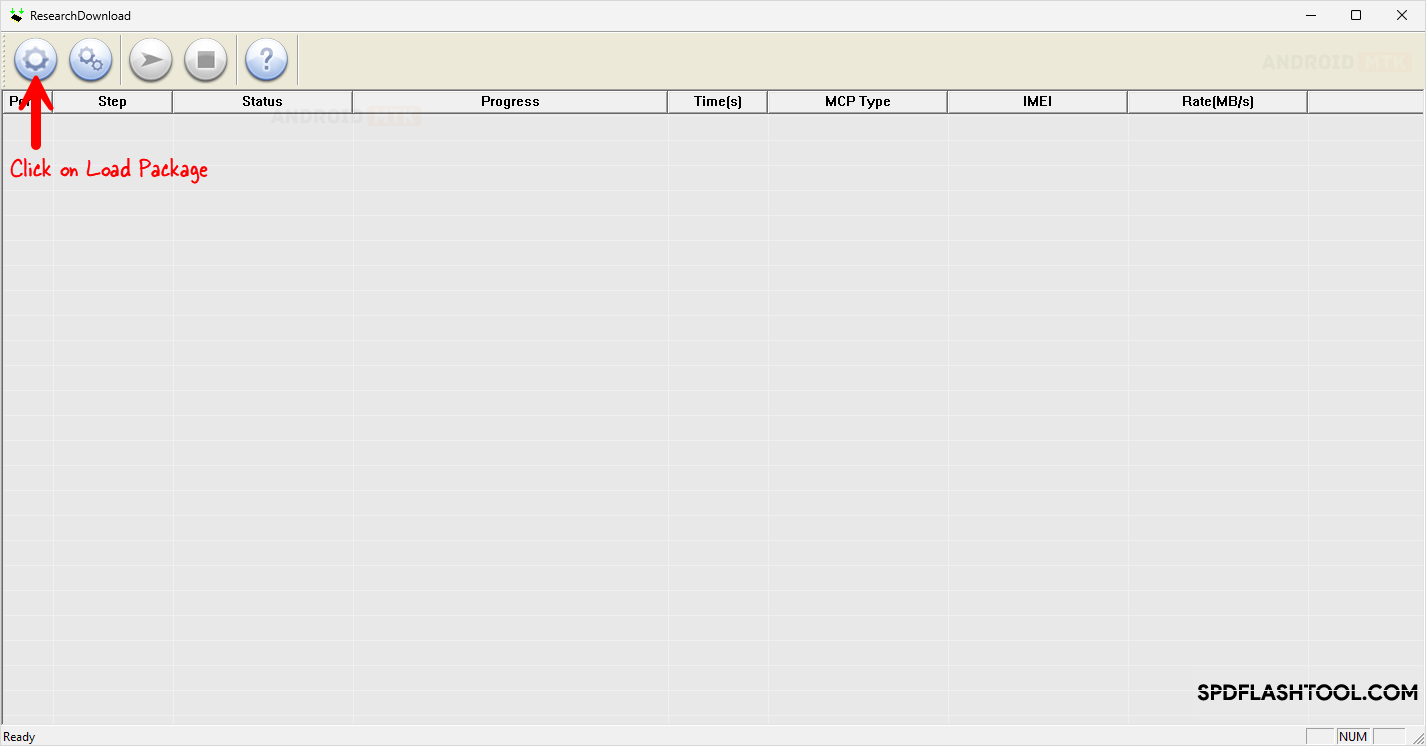
- Click on the Load Packet button and select your device .pac firmware file.
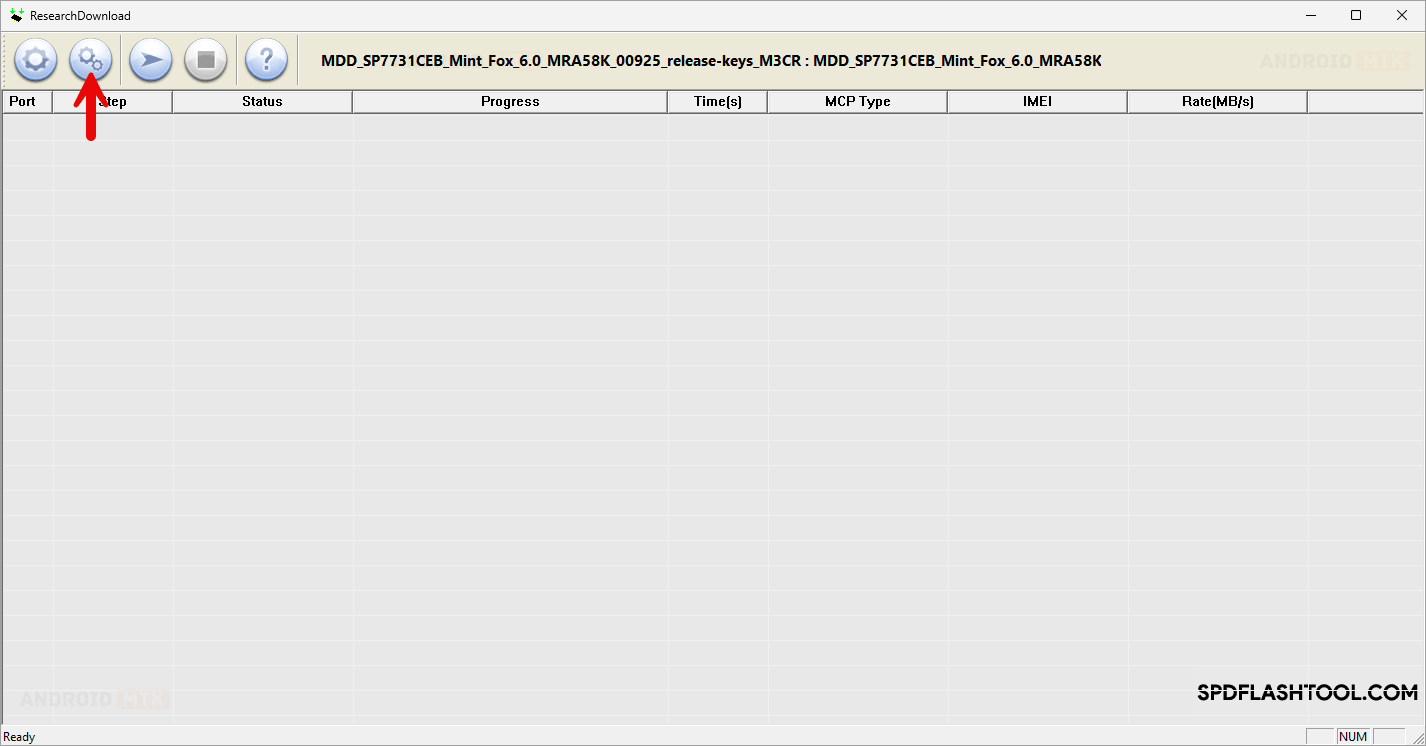
- Once the firmware loads, Click on the Settings Icon.
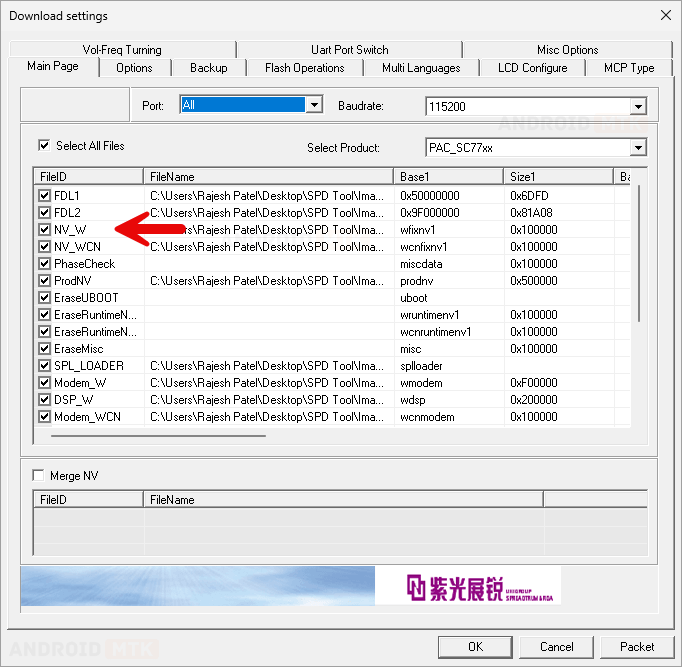
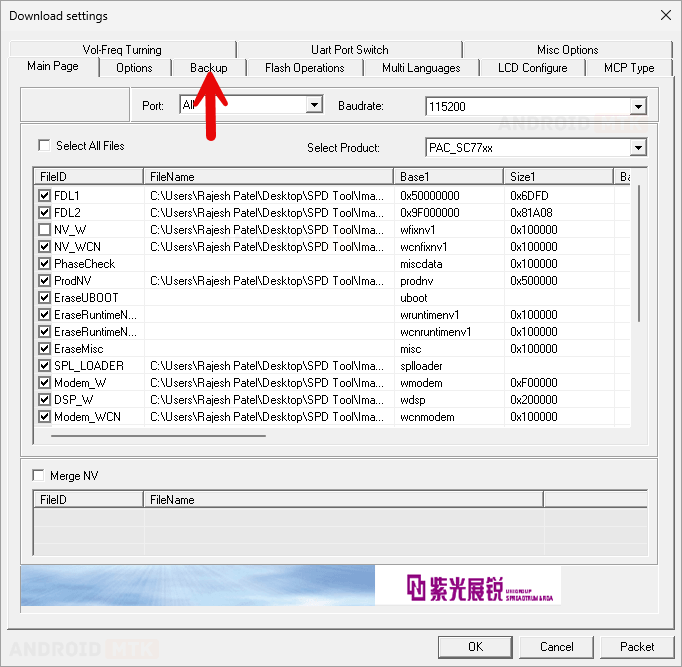
- On the main page, deselect NV-W (uncheck the NV-W partition).
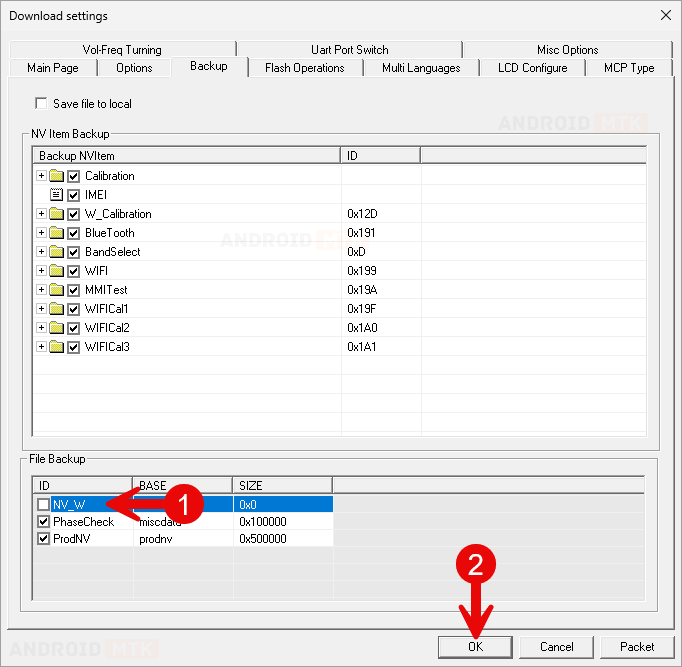
- Now click on the Backup tab and deselect NV-W from there as well.
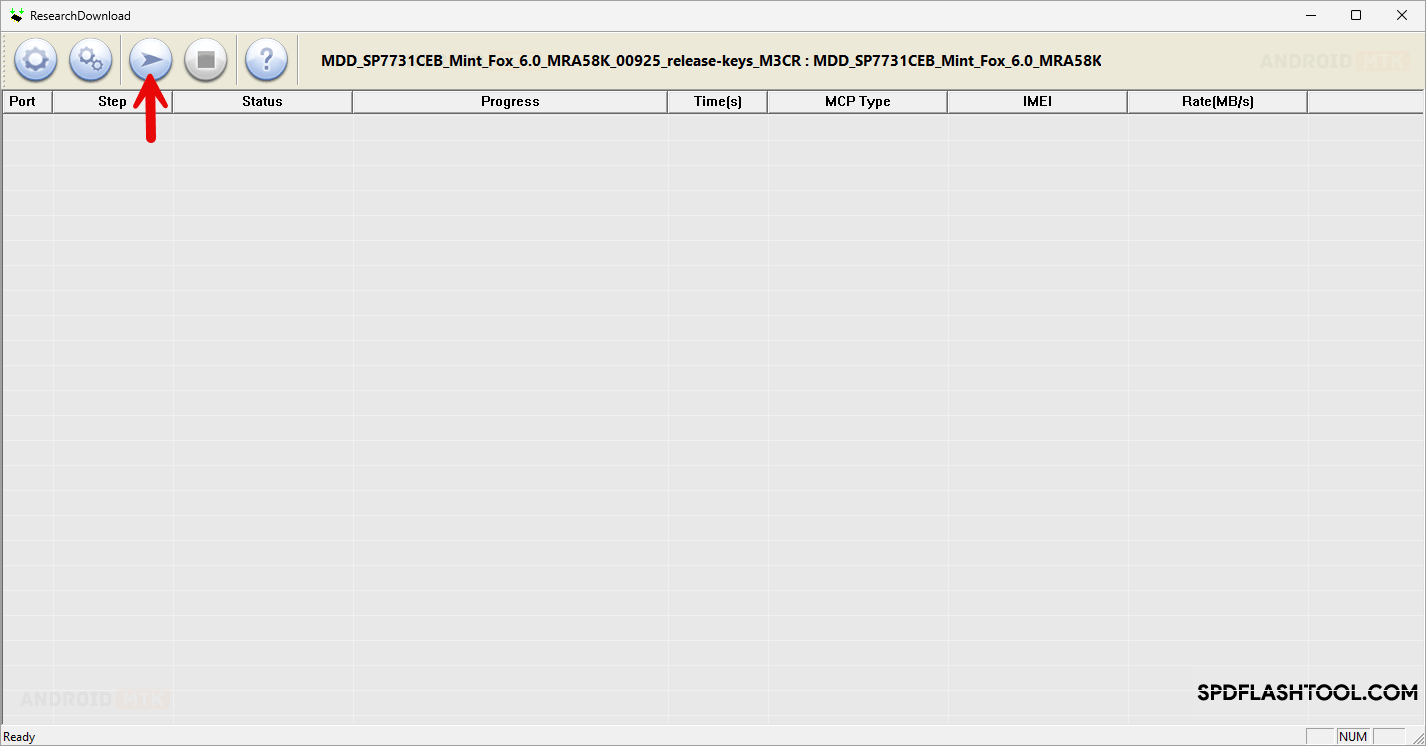
- Click the Start button to begin flashing.
- Power off your device and connect it to the PC while holding the Download Mode keys (usually Vol Up + Vol Down).
- The flashing process will start. Wait until it completes. Once finished, you will receive a success message.

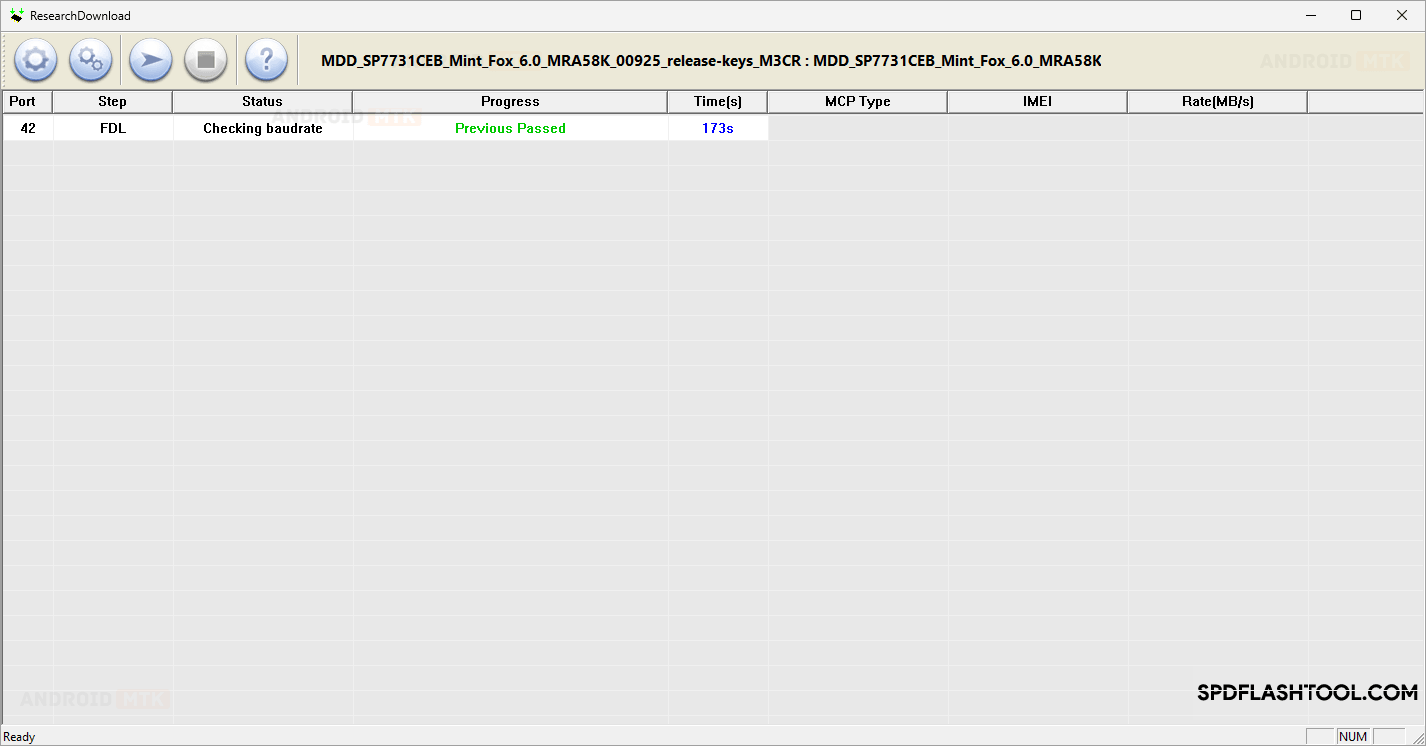
Congratulations! You have successfully fixed the NV-W Error in SPD Research Tool. Disconnect your device and restart it.
Notes
- Additional Tips: Always use the latest version of SPD Research Tool. Try a different .pac file (same model) if the error persists. Disable Antivirus/Firewall during flashing.
- Caution: Always use the correct firmware for your exact device model. Wrong firmware can cause permanent damage.
- Alternative Solutions: Update to the latest SPD Research Tool version or try a different USB port/cable if the error still appears.
- Credits: SPD Research Tool is developed and distributed by UniSoc Technologies Co., Ltd. All credits go to them for providing this utility to the community.

