


In this article, we will guide you through creating an FRP (Factory Reset Protection) reset file for Spreadtrum (UniSoc) chipset-powered devices using the SPD Research Tool.
What is the SPD Research Tool?
The SPD Research Tool is a powerful utility developed for debugging, flashing, and customizing firmware on Spreadtrum/UniSoc devices. It allows users to load .pac firmware files, select specific partitions, and create custom files, such as FRP reset files, to bypass Google account verification locks.
What is an FRP File?
An FRP file is a specialized .pac file that targets only the partitions responsible for Factory Reset Protection (typically Persist and EraseRuntimeNV). It erases the Google account lock without flashing the entire stock ROM, making it a quick and efficient way to bypass FRP on locked Spreadtru/UniSoc-powered Android devices.
How to Create FRP File Using SPD Research Tool
Before you begin, ensure you have the necessary files and drivers ready.
Prerequisites
- A Windows PC/Laptop and a good USB cable.
- Download the stock firmware (.pac file) for your exact device model.
- Download and extract the SPD Research Tool.
- Install Spreadtrum (SPD/Unisoc) USB drivers.
Disclaimer: androidmtk.com shall not be held liable for any damage incurred to your device during or after following this guide. Proceed with caution and at your own risk.
Steps to Create FRP File Using the SPD Research Tool
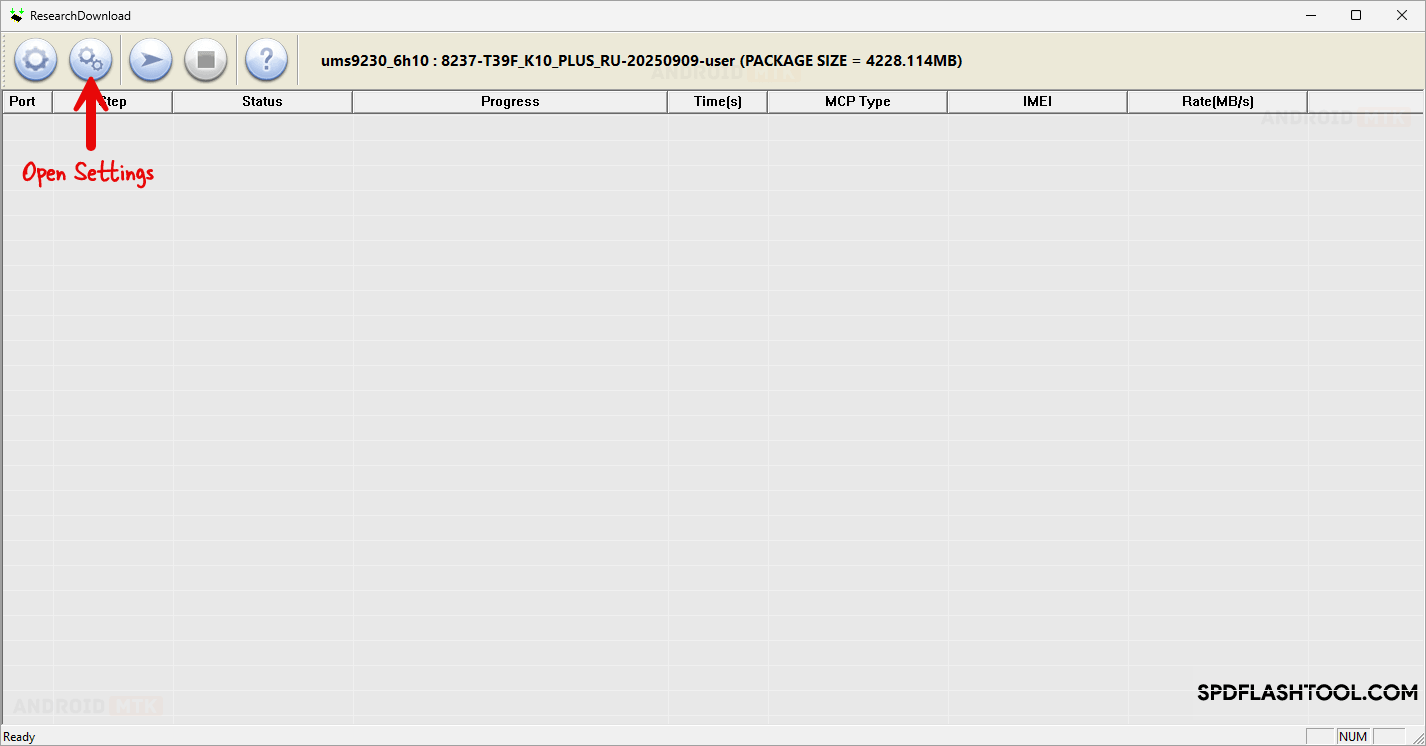
- Launch the SPD Research Tool (ResearchDownload.exe).
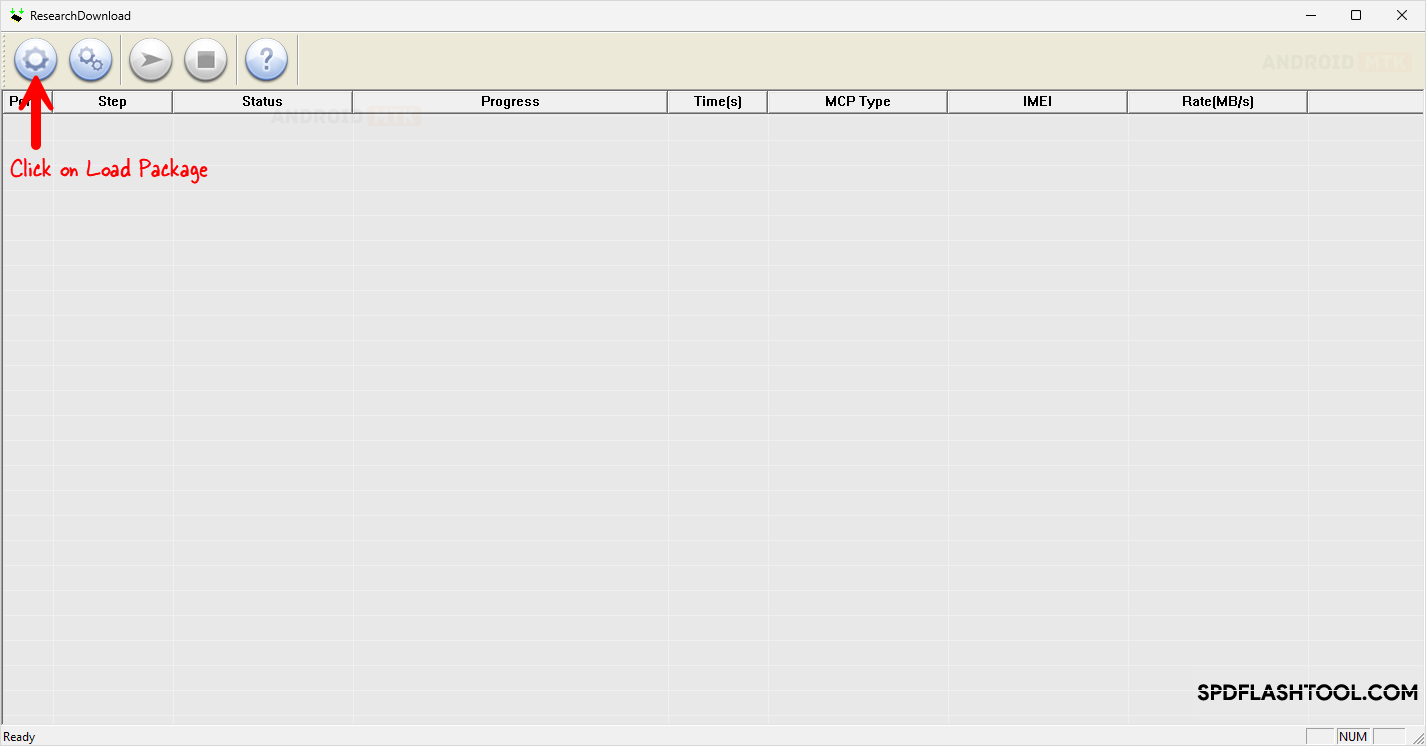
- Click on the Load Packet button.
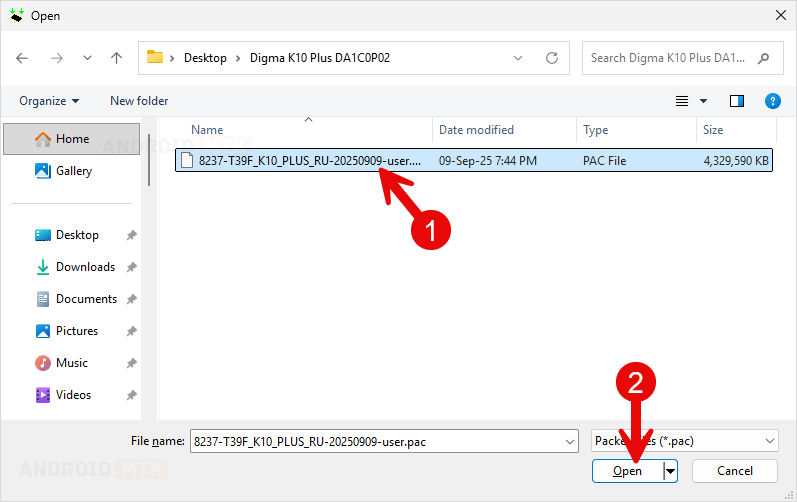
- Browse and select your device’s stock firmware (.pac file). Click Open and wait for it to load completely.
- Click the Settings button.
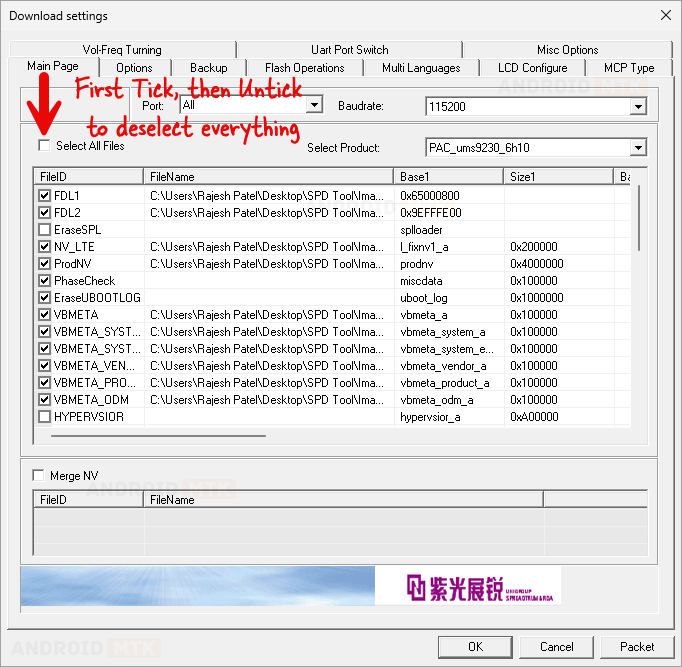
- In the settings window, untick Select All Files (or deselect everything).
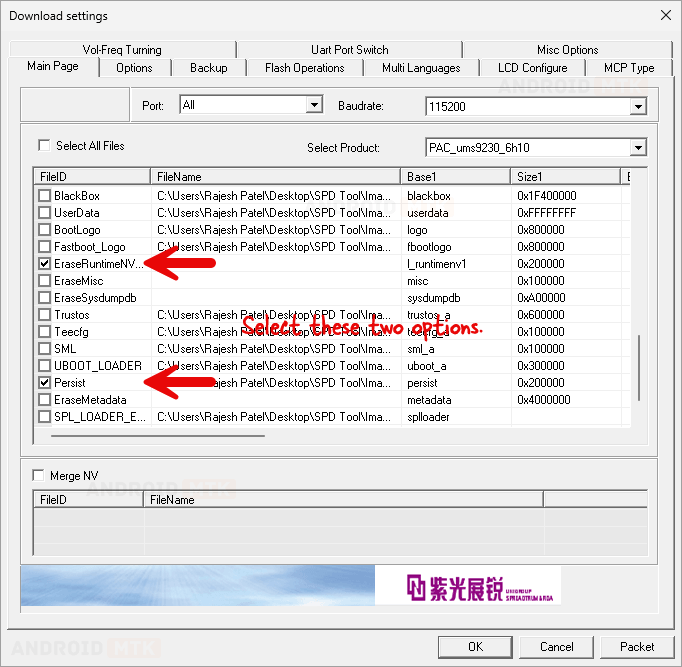
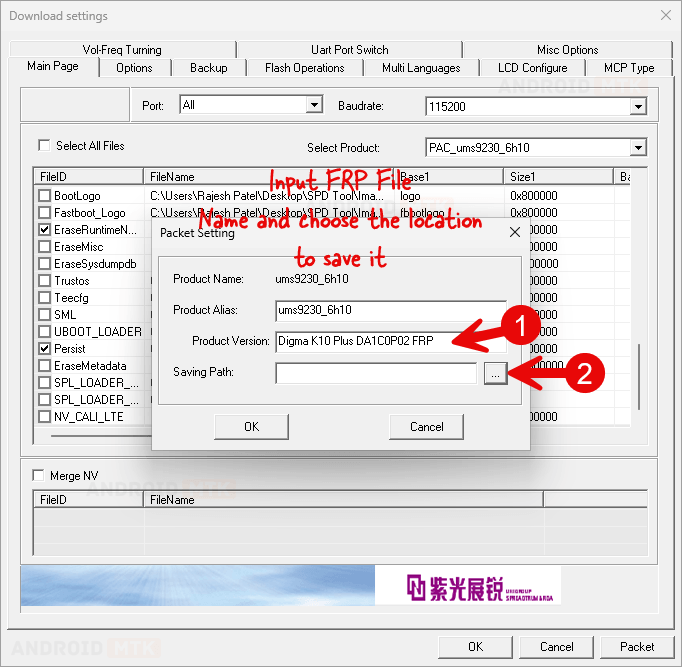
- FDL1 and FDL2 are selected by default. Scroll down and select only EraseRuntimeNV and Persist.
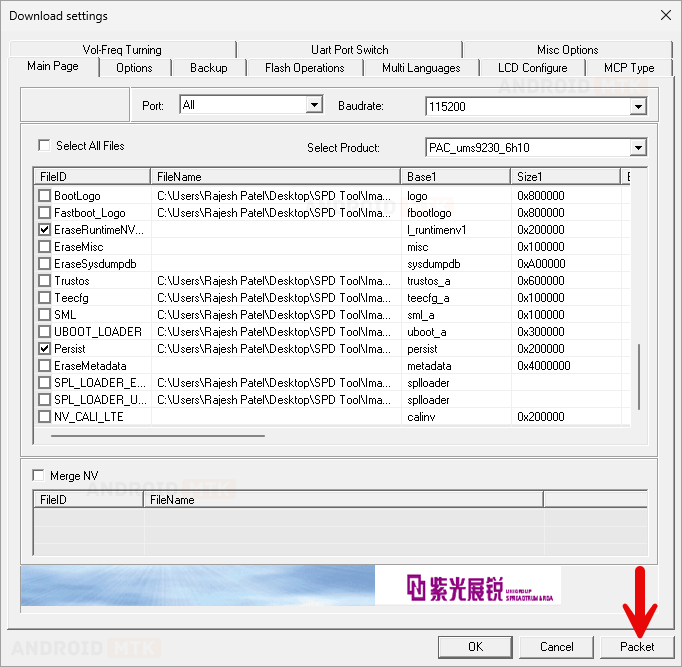
- Click on the Packet button.
- A confirmation pop-up will appear. Click Yes. Enter a filename (e.g., DeviceModel_FRP.pac) and choose the save location. Click OK.
- Wait for the process to complete. You will see a Packeting Completed message.
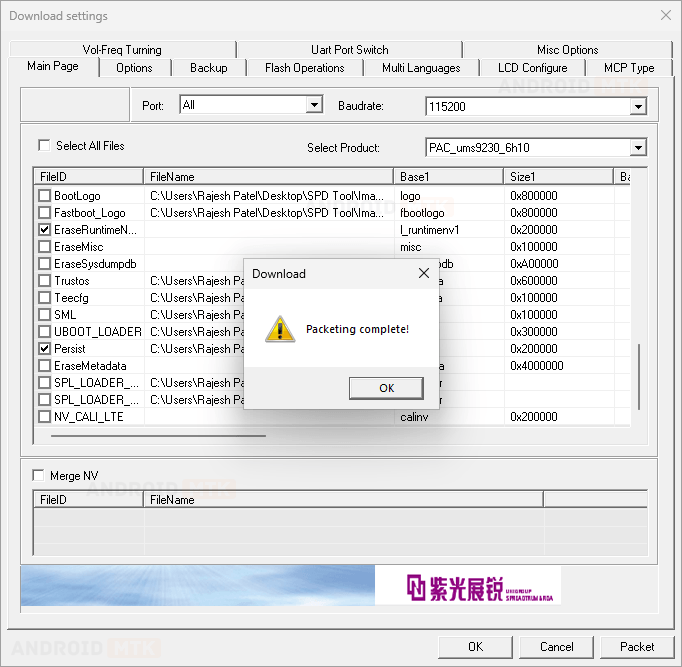
Congratulations! You have successfully created the FRP reset file using the SPD Research Tool.
Notes
- Minimal vs Advanced FRP File Method: The steps above show the minimal method (Persist + EraseRuntimeNV only), which works for most devices. However, in some cases, you may select multiple partitions, such as Userdata, Cache, EraseMics, EraseRuntimeNV, Persist, and Uboot_Loader (check screenshot). This advanced method creates a more comprehensive reset file that also performs a partial factory reset.
- Usage: To use the FRP file, load it in the SPD Research Tool, connect your powered-off device in download mode (usually Vol Up + Vol Down + USB), and click Start. The process will erase the FRP-related partitions.
- Caution: Always use a firmware .pac file matching your device model and chipset. Incorrect partitions may cause boot issues. Take a full backup before using any FRP file.
- Credits: SPD Research Tool is developed and distributed by UniSoc Technologies Co., Ltd. All credits go to them for providing this utility to the community.

